Welcome to your collaborative workspace
Please note: CardStorm is a prototype built to demonstrate the user experience. It does not have enterprise-grade security, so please don't enter anything you would want to keep secret, including full names and email addresses.
To continue, please register:
Please note: CardStorm is a prototype built to demonstrate the user experience. It does not have enterprise-grade security, so please don't enter anything you would want to keep secret, including your full name or a real email address. A made-up email address works fine.
Create a new project from File → New, or open an existing one from File → Open. The first time you try to add or edit anything, you'll be asked to register a username and initials — after that, cards you create are tagged as yours.
Drag a card type from the palette on the right onto the workspace to drop a new card there. Don't have the type you want? Click the + button in the palette to define a new card type with its own name and color first.
Click and drag any card to reposition it.
Click a card to select it. Ctrl/Cmd-click additional cards to build up a multi-selection. Press Delete or Backspace to remove whatever's selected.
Double-click a card to open it for editing — change the header or body text, then save. New cards you drag from the palette open straight into this view so you can fill them in right away.
Drop cards close enough together and they'll link into a constellation — you'll see a shared grey shadow appear behind them. Drag a card itself to move just that card. Drag the shared shadow instead to move every card in the constellation together, keeping their layout intact. You can even drop the shadow onto a wormhole to send the whole constellation through at once.
Dragging a card and need to drop it somewhere far away? Keep dragging toward any edge of the window and hold there for about a second — the view will gradually zoom out so more of the workspace comes into reach. Let go of the card where you want it, and the view zooms back in, centered on the new spot.
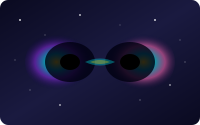
Drag the wormhole icon from the palette onto the workspace to place a linked pair of portals. From there: